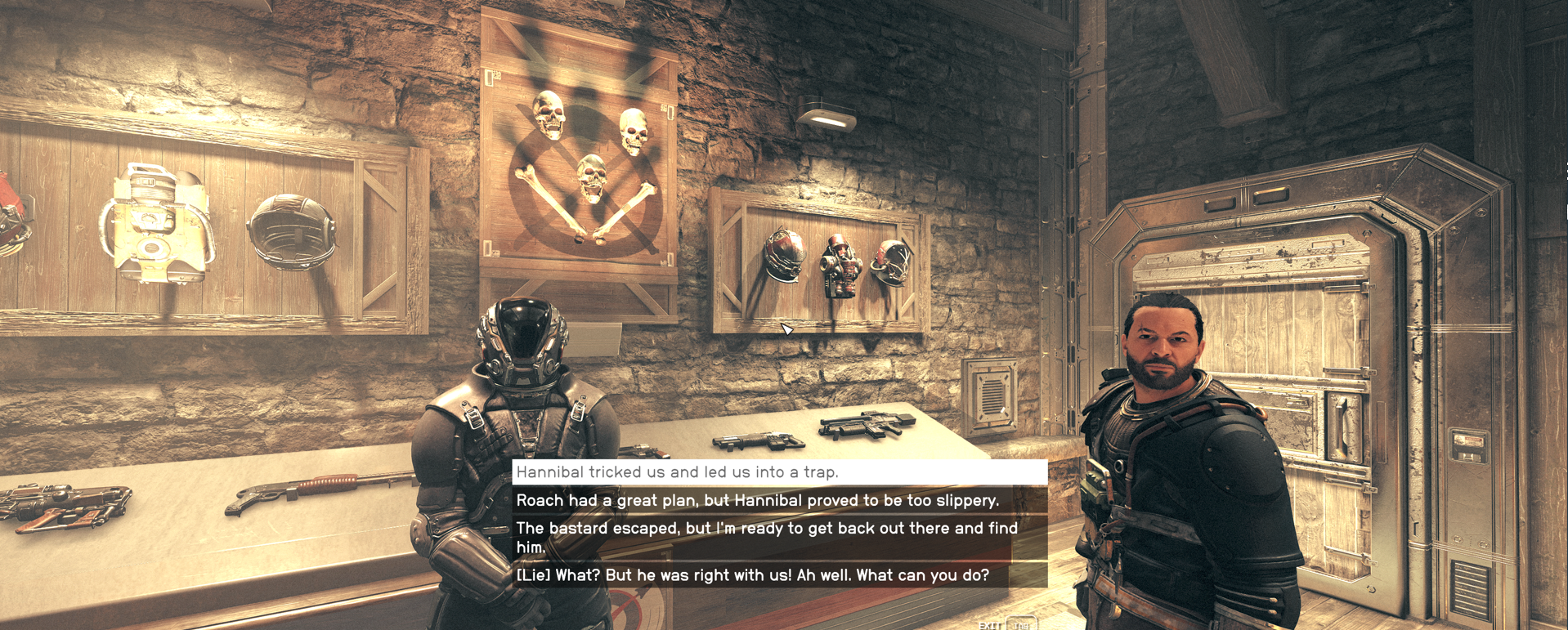
Starfield is a game built on freedom—freedom to explore, to build, to align with factions, and to shape your character’s place in the Settled Systems. Turning off the Starfield dialogue camera is just another form of that freedom. It lets the game breathe, lets conversations feel more natural, and gives players control over how they experience Bethesda’s newest universe.
Why Turning Off the Dialogue Zoom Improves the Experience
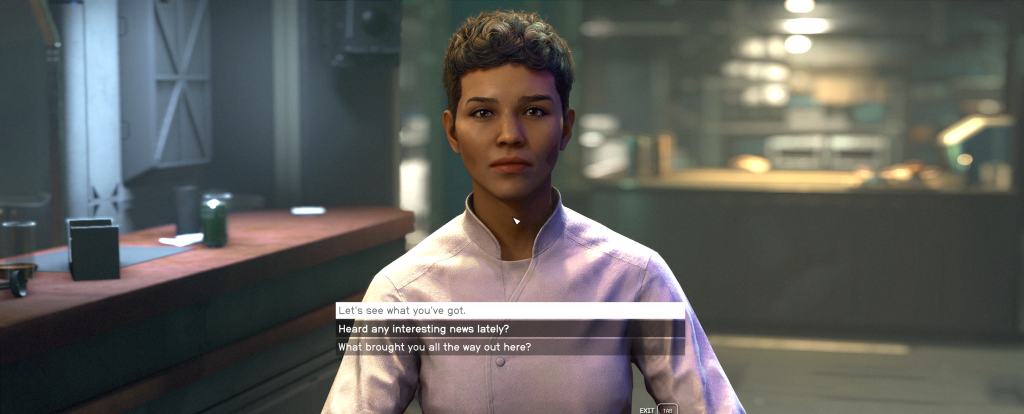
For many players, disabling the zoom in the Starfield dialogue camera:
- Preserves situational awareness (especially in hostile or crowded areas)
- Feels more immersive—you stay grounded in the world instead of snapping into a cutscene
- Improves role‑playing by letting you choose your own “cinematic framing”
- Reduces visual fatigue from constant camera transitions
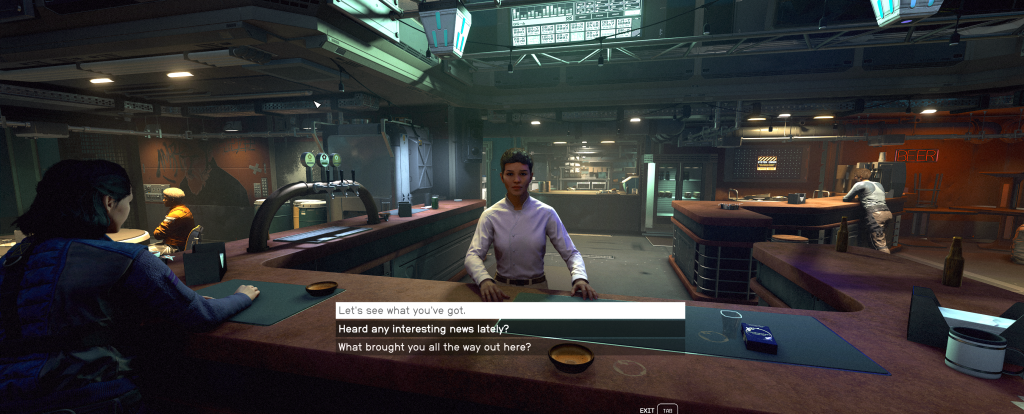
It’s a small tweak that dramatically changes the game’s pacing and tone.
Changing the Starfield Dialogue Camera Setting
Open the Pause Menu
You must start from Starfield’s in‑game pause menu to access settings.
Press ESC (PC) or Menu/Start (Xbox controller)
- Make sure you’re not in a dialogue or cutscene
- The main pause menu should appear with options like Load, Save, Settings
Enter the Settings Menu
All gameplay, display, and accessibility options are located here.
Select Settings from the pause menu
- Use mouse/keyboard or controller to highlight Settings
- Confirm to open the submenu
Navigate to Accessibility
The Dialogue Camera toggle is located under Accessibility, not Display or Gameplay.
Inside Settings, select Accessibility
- Scroll down the list of categories
- Choose Accessibility to open its options
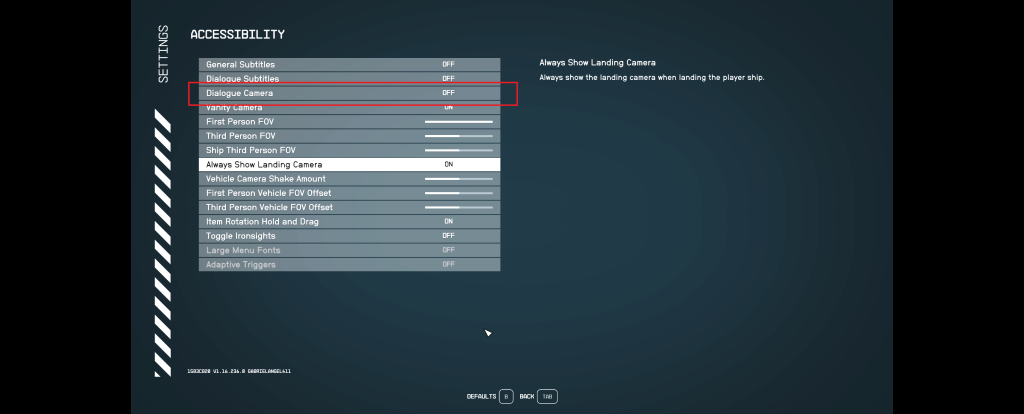
Locate the Starfield Dialogue Camera Option
This is the exact setting shown in your screenshot—the one boxed in red.
- Look for Starfield Dialogue Camera in the list
- It appears between Dialogue Subtitles and Vanity Camera
Turn Dialogue Camera OFF
Most Important Step
This disables Bethesda’s automatic zoom‑in camera during conversations.
- Highlight Starfield Dialogue Camera
- Set it to OFF (as shown in my image)
- The game will now keep your current camera view during dialogue
As a bonus setting, you can also turn on Always Show Landing Camera. After landing in a spot once, Starfield usually does not show the landing animation after that in that area. I like to see it every time and if you are the same, then there you go.
If for some reason you have not jumped into Starfield, here’s your chance: Starfield.